

I covered modals on custom pages in previous posts, but what if you want to implement a modal within any existing implementation, like the Service Operations Workspace (SOW)?
Lets take a look at that in this post.
Usecase
The most common real-life use case might be a declarative action that opens your custom modal and refreshes the form/list once the modal closes. Although refreshing the form may not always be needed since the form listens for changes to the record, we can show how the modal and the parent page communicate.
Where and How?
To implement the modal on the form, first locate the right page. Open SOW in UIB and find the Record pages. There aren’t many, so with a closer look, you should easily identify the correct one (ignore emails, catalog items, etc.).

This is where we will implement our modal.
After you open the SRP Record (Standard Record Page), you will notice that something is wrong: the page is read-only.
It’s probably the best possible example of why viewports exist. The creator of the page simply says: “I don’t let you edit my page, but I give you viewports here and there so you can implement content via child pages as you like.“
So, we now know that our modal must be part of one of the page collections in the modal viewport.

OK, so we know Where. Now we need to find out How.
Every modal needs to be opened via some trigger/event. We already know that we will use a declarative action, and there is only one place a declarative action can call: handled events.
If you take a look at Body > Events, you will clearly see the combination for opening the Viewport Modals 👇

So, our declarative action needs to fire an “[SOW] Open record form modal v2” event with the correct payload. The record page then handles opening the modal for us.
Now, we know How.
Modal
Open Page Collection SOW Record page modals. You will see many existing pages there. Each of them has its own URL path. Just create a new page there with some “Hello, world” content.
Notice the URL path, we will need it.

That’s it. Our basic modal is ready, and we just need a declarative action to open it.
Declarative action
Implement new Form Action, keep the payload definition empty for now.

Find Action Congfigs for SOW and put the Declarative Action somewhere among Incident buttons.

Your Declarative Action should appear on the Incident form afterwards.

It does not do anything yet, though. We need to add new event mapping so the system knows what event to fire. (Don’t forget to switch to Advanced view to see this Related list)

Click on New on “UX Add-on Event Mappings” Related list. Argh, ok, but how should this be implemented?
There is nothing easier than getting inspired by existing implementations, right? 😊

Following fields will be the same:
- Source Element ID
“ui_action_bar”
ID of the component in UIB. This is where our Declarative Action is rendered and where the event is fired from. - Parent Macroponent
“SRP Record”
SYS ID of the SRP Record page. - Target Event
“[SOW] Open record form modal v2”
SYS ID of the Event that our Declarative Action will call. - Target Payload Mapping
It looks confusing but there is a system in it. For now, we will just copy&paste it.
Following fields will be ours:
- Event Mapping Name
Just pick some meaningfull name for your mapping. - Source Declarative Action
ID of our Declarative action.
The Event Mapping implementation for your Declarative Action should now look like this 👇

As a last step, we need to implement mapping to the payload so that when the Declarative Action button is clicked, there will be a correct payload indicating which route to open in the Modal Viewport.
Go back to your Declarative Action and open the Action Payload Definition record.

This is where you map your inputs to the event payload. It’s a simple JSON; we need “route” only for now.
After you save it, do notice that an Action Payload Field has been automatically created for you out of the provided JSON.

Now we can implement our mapping.

The route will be the URL path of our Page Collection Page.

Save it and go test it.

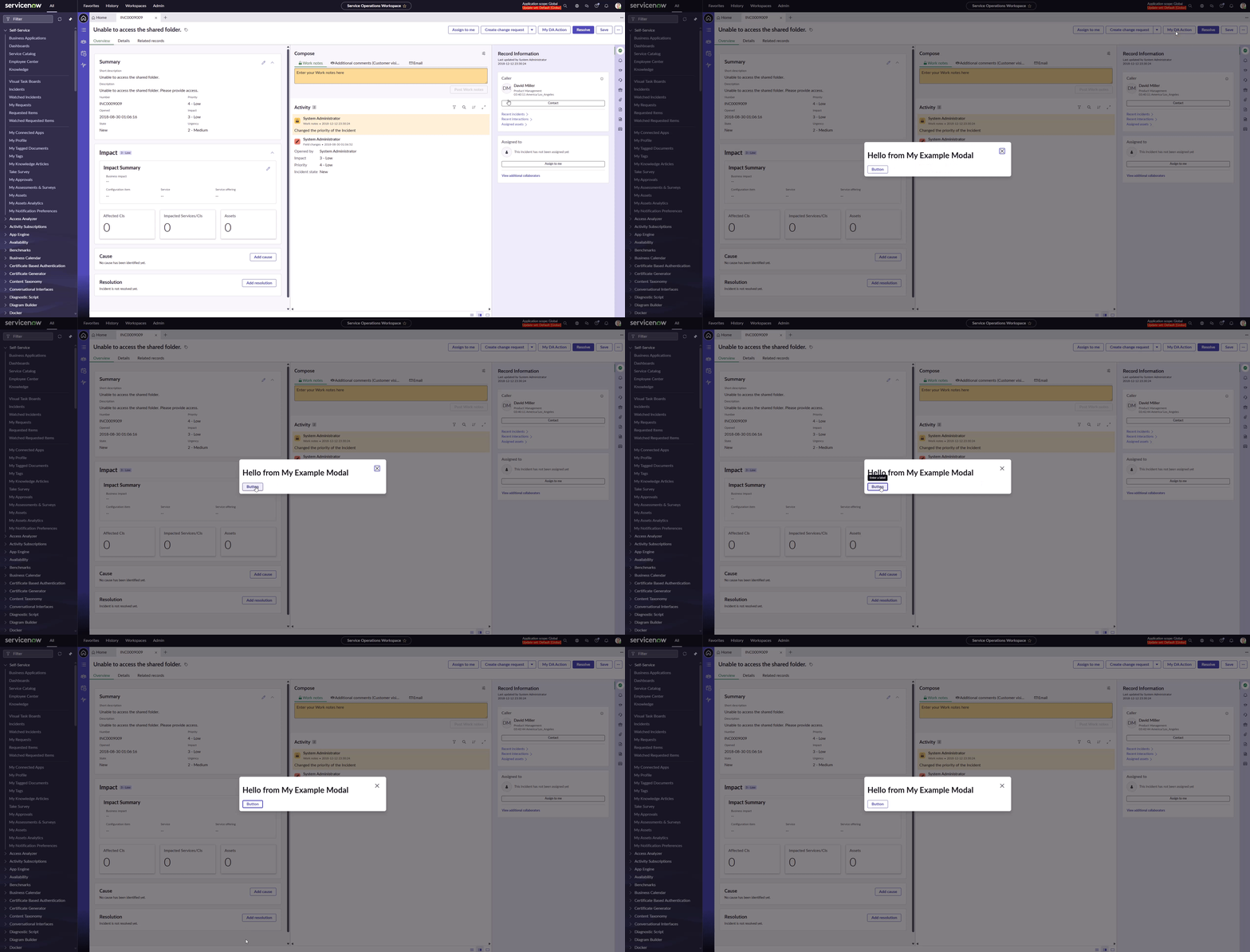
It should work! 💪
Tips & tricks
Don’t make it unnecessarily complicated with input properties like table or sys_id. Don’t forget that the modal has access to the form directly, so you can get all the form information in UIB right away.


Having access to the Form Controller in mind, you can, of course, do any other operation over the Form, like refreshing it on demand.

Summary
In this post, we explored how to implement a modal within the Service Operations Workspace. The key points are summarized as follows:
Use Case
- A common scenario involves a declarative action that opens a custom modal that potentially communicates with the form / list.
Implementation Steps
- Locate the Right Page:
- Identify the Standard Record Page (SRP) within the SOW where the modal will be implemented. This page is read-only, emphasizing the use of Viewports for editable content.
- Modal Creation:
- Open the Page Collection for SOW Record page modals and create a new page with simple content. This page will serve as the modal.
- Declarative Action Setup:
- Create a new Form Action without a payload initially.
- Add the Declarative Action button to the Incident form.
- Implement event mapping for the Declarative Action to trigger the modal.
- Event Mapping:
- Map the following fields to configure the Declarative Action:
- Source Element ID: “ui_action_bar”
- Parent Macroponent: “SRP Record”
- Target Event: “[SOW] Open record form modal v2”
- Target Payload Mapping: Set as needed.
- Map the following fields to configure the Declarative Action:
- Action Payload Definition:
- Map inputs to the event payload, focusing on the “route” for the modal.
- Testing:
- After saving the mappings, test the functionality to ensure the modal opens correctly.
Tips
- Avoid unnecessary complexity by not including input properties that aren’t needed.
- Utilize the Form Controller within the modal to manipulate form data or refresh as needed.
In conclusion, by following these steps and best practices, you can successfully implement a modal within the SOW, enhancing user interaction and workflow efficiency.
With combination of Mastering Modals 💪 – part 1, you should be a Modal superhero by now!
Don’t forget to like and eventually comment in case of any questions!
If you found this helpful and want to show your appreciation, a coffee is always a way! 😎
Stay tuned!
Jan
 My UI Builder Corner ☕
Leave a comment