

Handling Modals in Configurable Workspaces could look straightforward for Single Page Apps, but not evetrything is so clear when handling advanced scenarios especially in read-only situations like in Service Operation Workspace.
Let’s explore all the options, nicely step by step.
Basic concept
If you have a standalone single page application, you would probably implement the modal directly in that page.
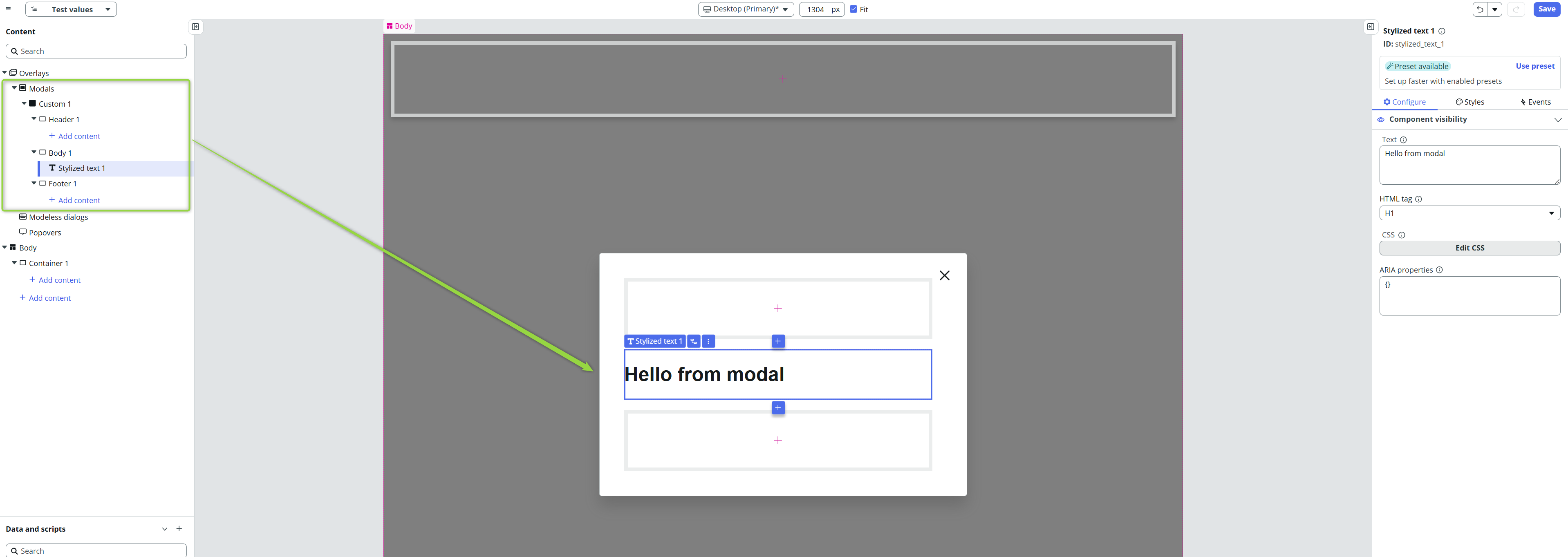
To open any modal, there always must be some trigger. It will be some button in most cases.
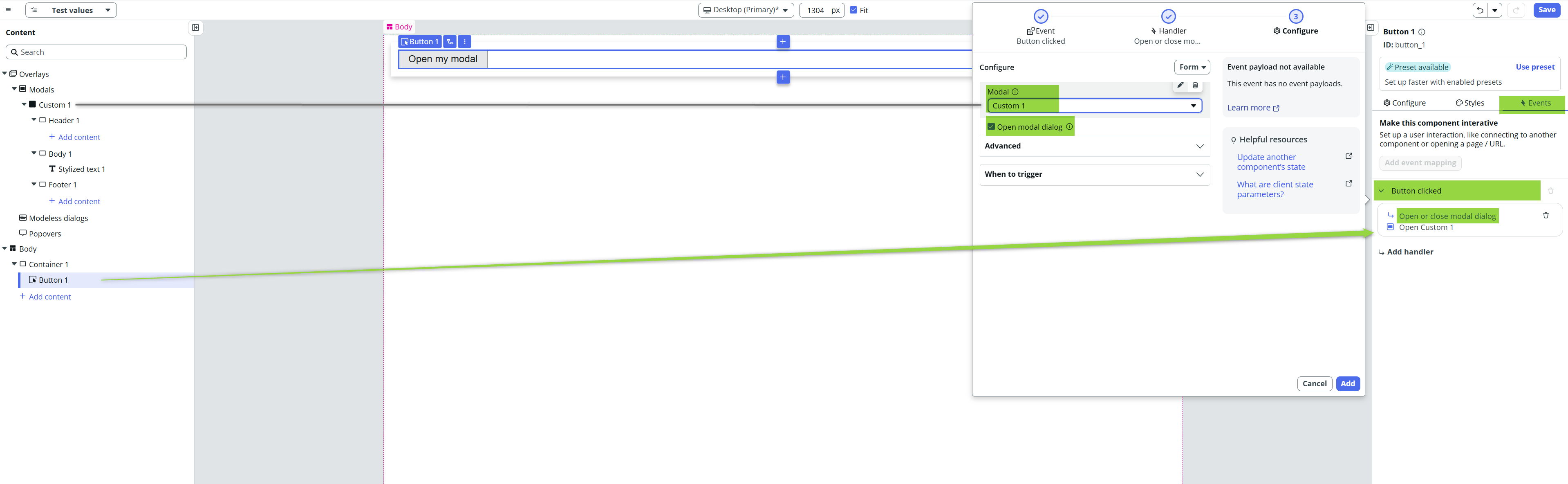
Pretty straighforward, right? If you go on the page and click on the button, you’ll see the modal after that click.
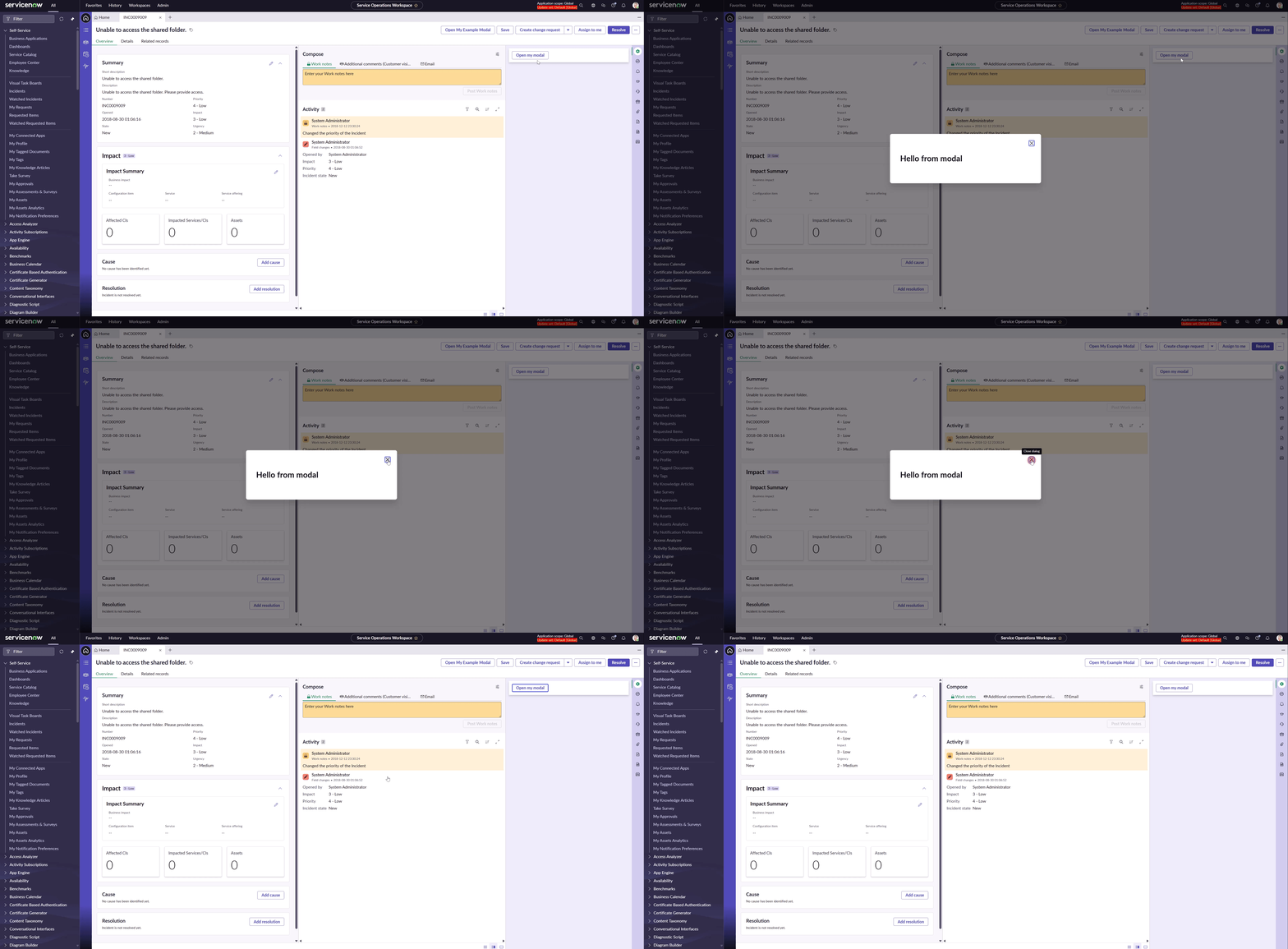
There are several problems with this approach, though.
Composition
The modal is part of the content tree so in case you implement something big, it’s going to be mess in the component navigator.
Logic
Modal implemented directly on the page can’t have its own state or data resources. Everything needs to be stored in the page’s state, if you need Data Resource or Client Scripts, you need to implement them among other page’s Data Resources and Client Scripts. Advanced modals will create a mess in your implementation and you’ll get lost soon.
Maintenence
Maintanence is a risk because you can accidentally change something on the page’s logic even when you wanted to change something small only on the modal. Such things happen in development, right?
Lets fix all those problems.
Modal Page Collections
The idea of it is pretty simple: let’s have all our modals implemented somewhere else as a standalone pages and let’s only reference them from the main page. In such architecture, we need to touch our main page only once (to create the reference to our modals) and all development and updates of our modals will be a separate develpment without affecting the base app (page).
Let’s delete the previous modal and add a new one – Viewport modal.
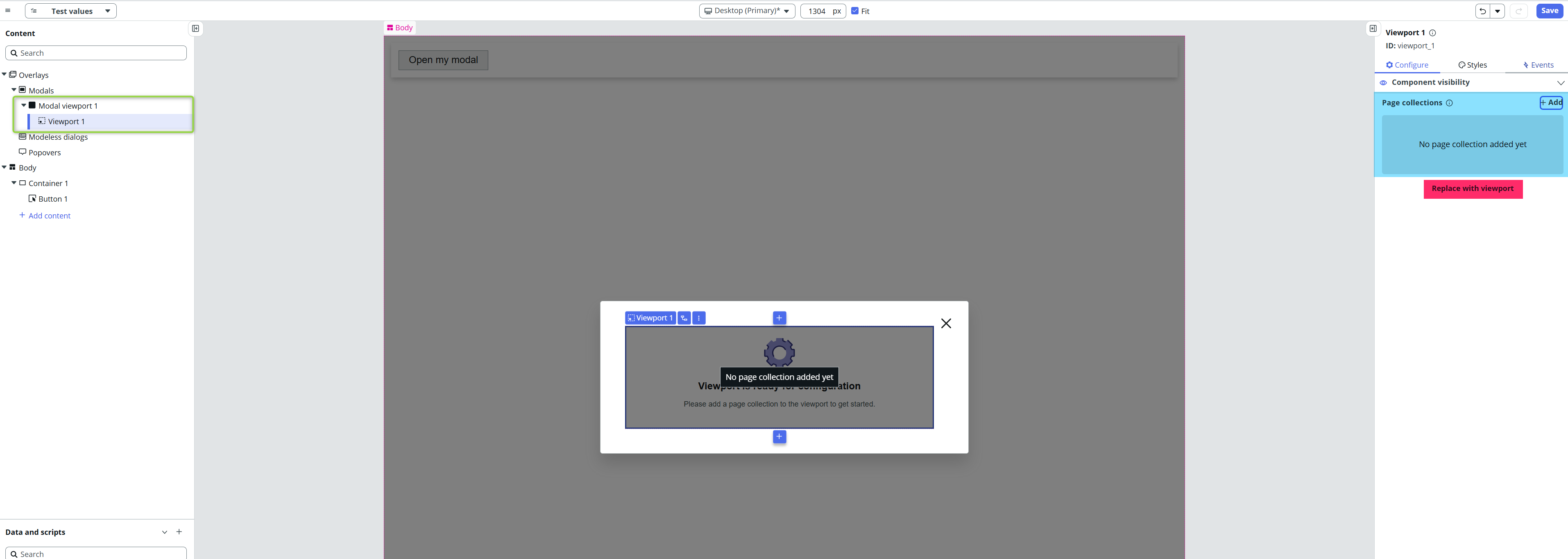
If you click on Configure tab, you would see that UIB offers adding Page collections. And that’s the way.
Page Collections
Page Collections are pretty powerfull features. They allow you to implement a set of pages for 3 main areas in Configurable Workspaces:
- Related lists
Besides standard Related lists that you configure via backend (Relationships), you can add standalone pages / set of pages among them as well. - Contextual Side Panel
This is the right-side panel where you can find Attachments, Agent Assist etc. Again, you can put a bunch of standalone pages there. - Viewports
You can consider viewports a “reference” points to other places. You put the viewport somewhere and put (in our case) Page collection(s) there. It’s like portal to other, isolated places.
End of Page Collections brief intro 🙂
Creating Modal Page Collection
When you click on “Add” to Add the Page collection, you could add some existing Page Collection, but we are going to create a new one. For the time of being, it’ll send you still in the backend on [sys_ux_extension_point] table. The important thing here is the Component. It has to be Viewport Modal.
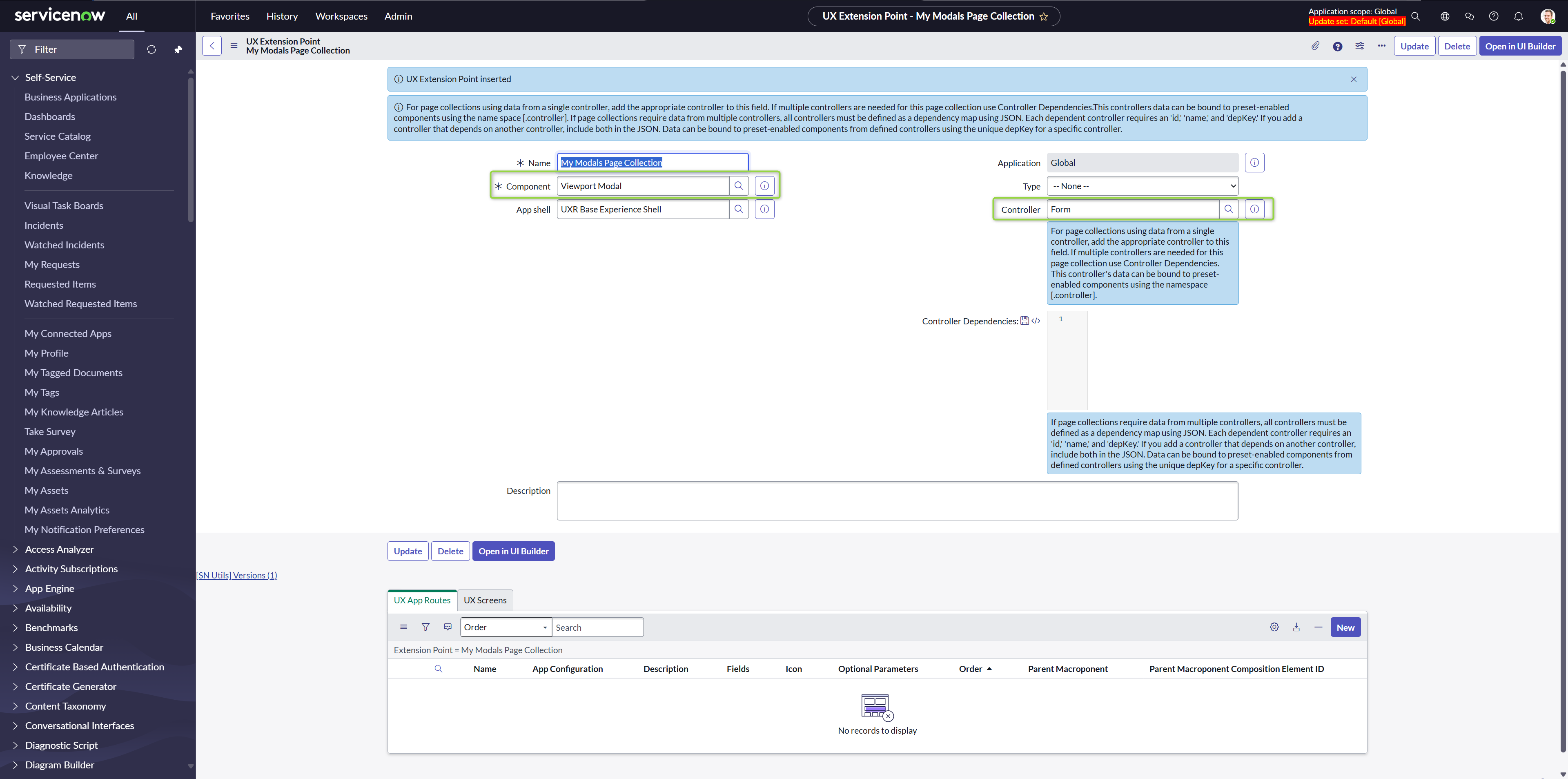
You can moreover notice that there is Controller field filled in. The reason is that Configurable Workspace Pages are ment to be always connected either with Form or with List. Of course you can create a standalone Single Page Applications not related to any record or list, but… In most cases, there always be Form or List. That’s why this field is mandatory (although not marked as mandatory) and Page Collection couln’t be created without filling it.
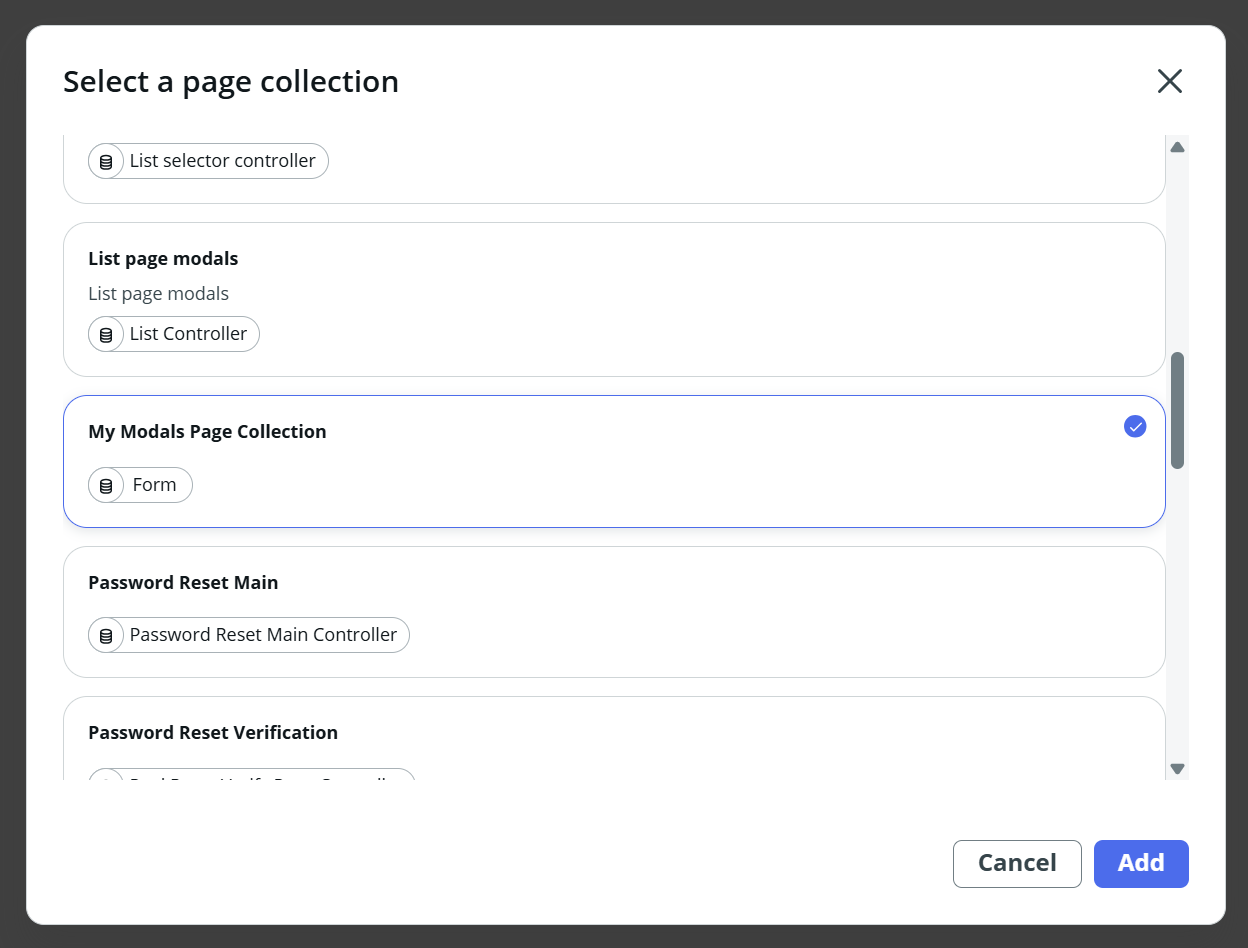
After inserting this record, our Page Collection becomes available for us to use.
The original handler for opening our deleted Modal is anymore there so we need to again implement the On Button Click event.
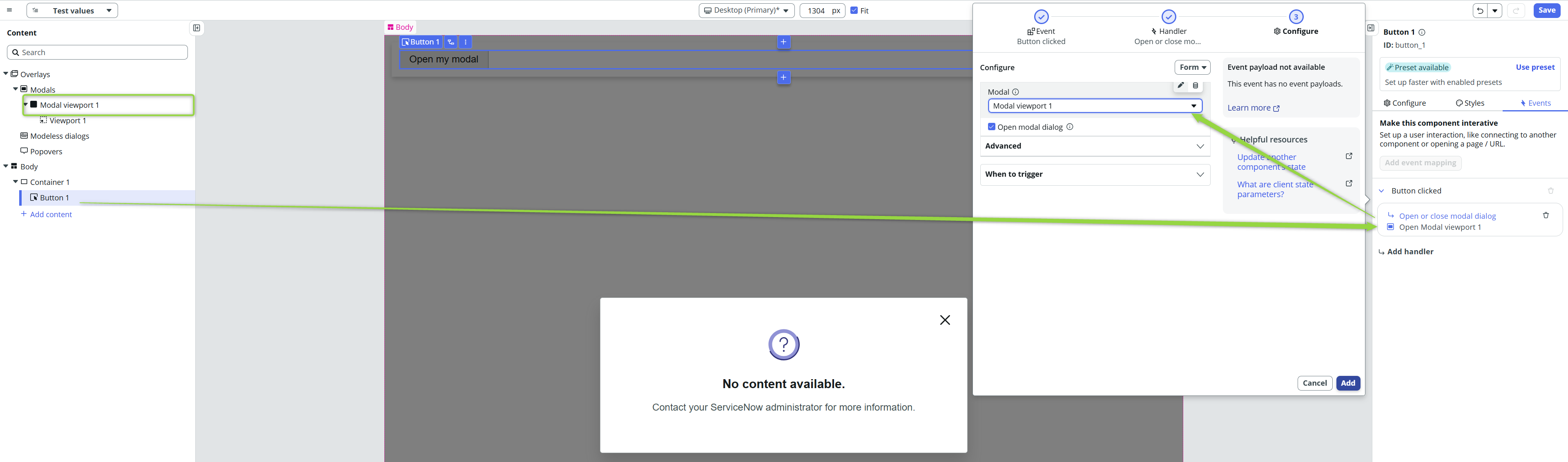
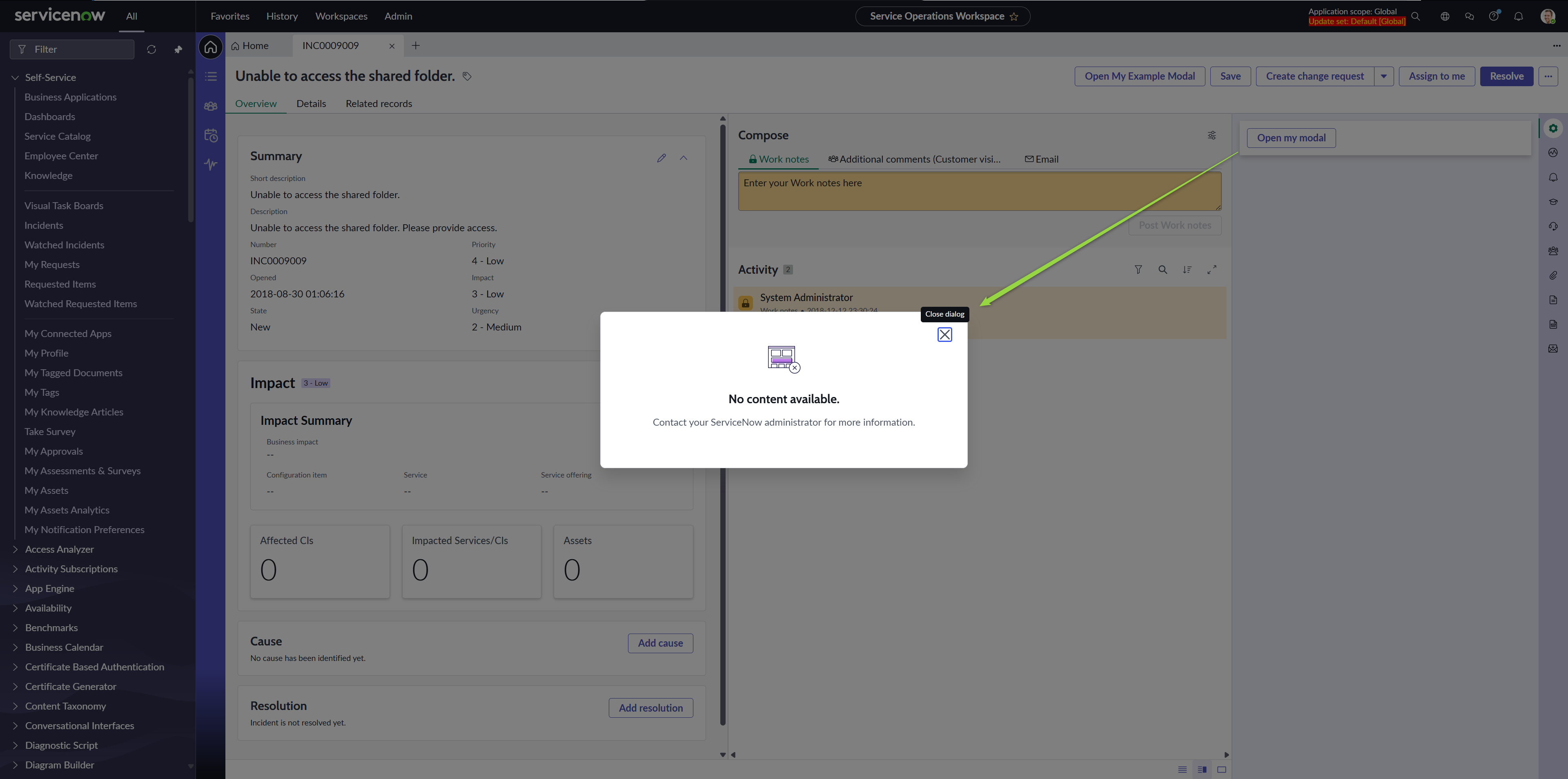
After you save your changes and refresh the Workspace, clicking on the Button will open the Modal, but with no content. We did not implement any yes.
Creating pages in our Page Collection
Open your Page Collection. You can go through UIB (clicking on the Viewport modal and opening from the right config panel) or you can go through the Main menu, because the Page Collection will be available there. It’s a standalone implementation now, remember?
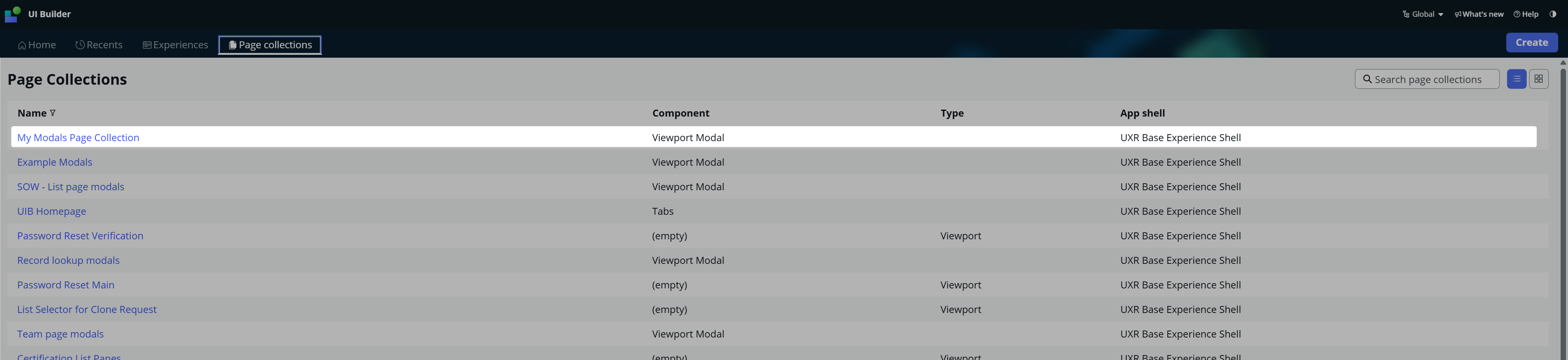
Create two pages (different names, but with no audience, no conditions) and be aware of the URL paths of each of them. We will need them for routing.
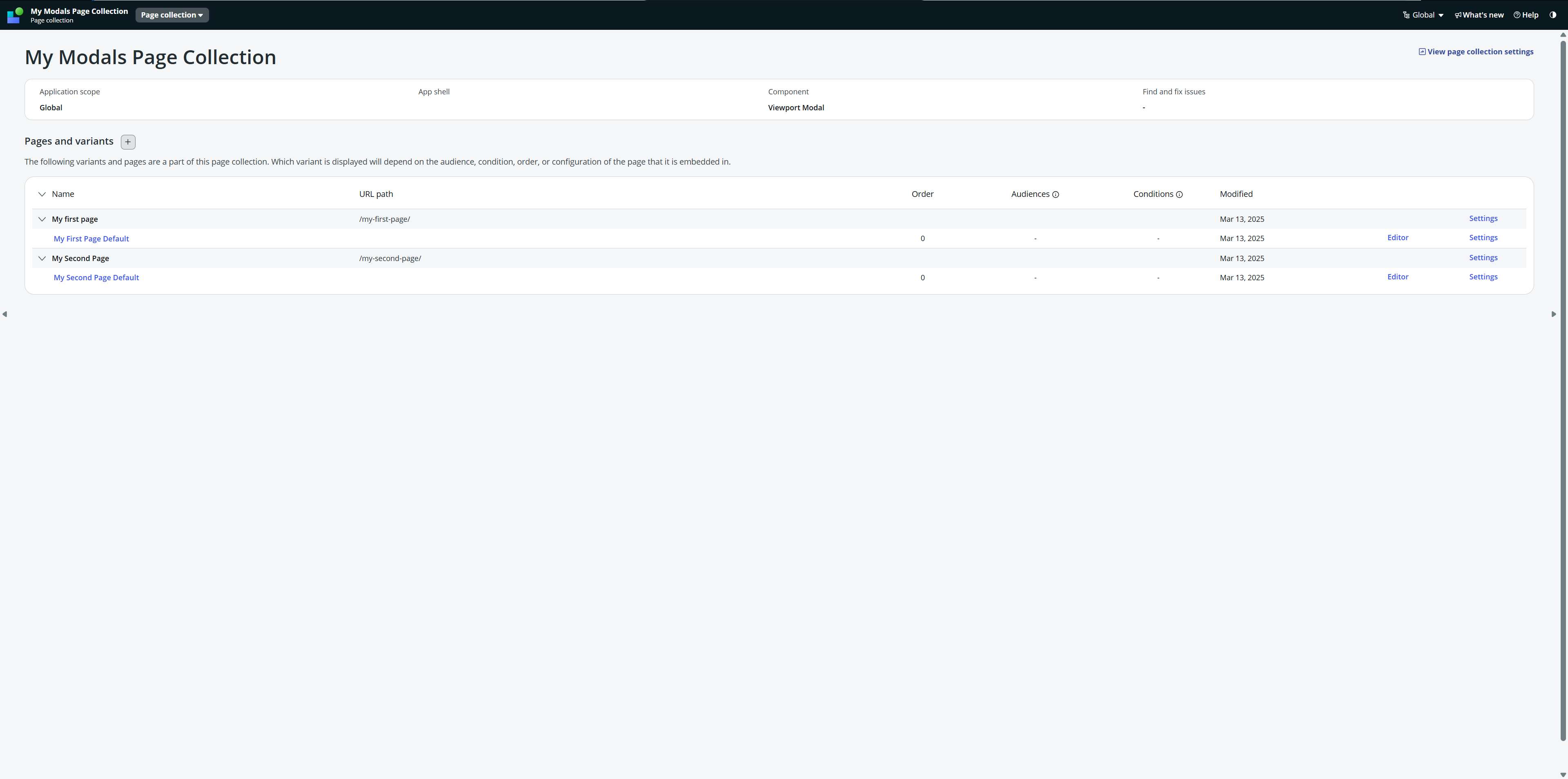
Put some Hello World into each of them.

Now, we need to go back to our page with the Viewport Modal and adjust the payload so the engine knows what Viewport and with which route to open.
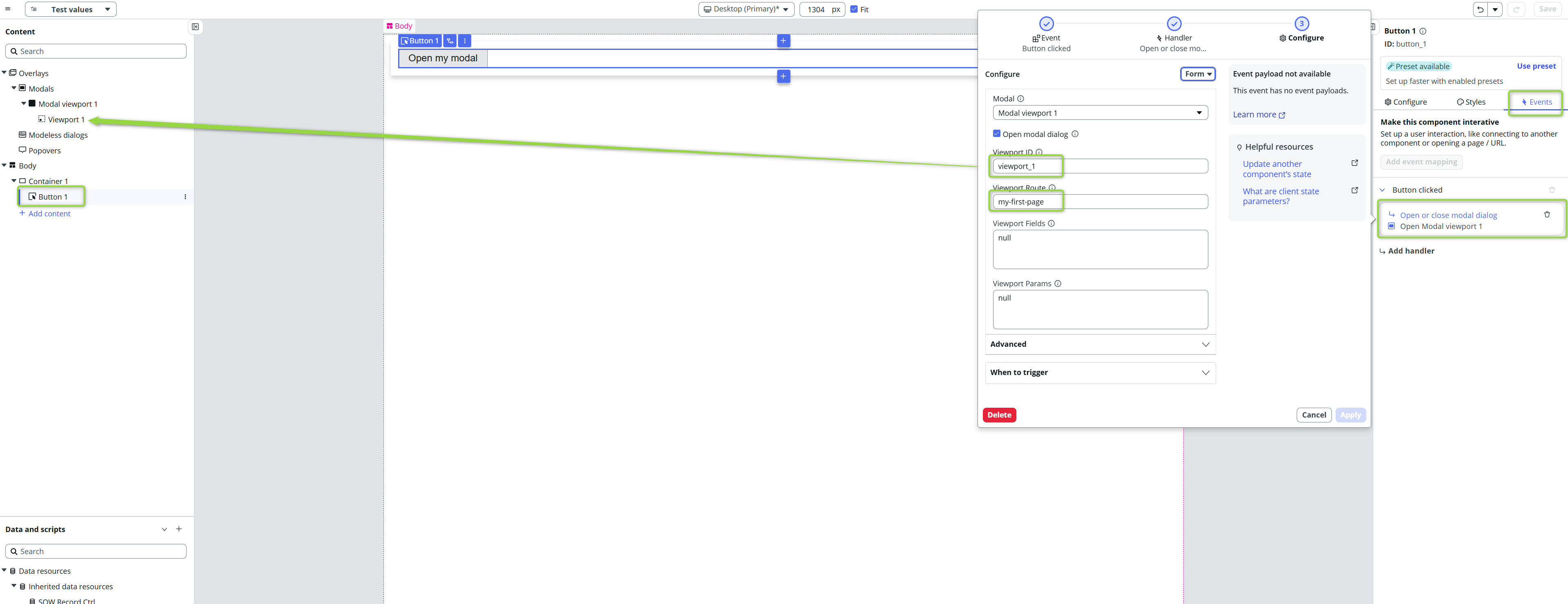
Notice the Viewport Route field. The is the URL path of my first route. I can then implement second button to open the same viewport, but with the other route.
Alltogether, it will look like this 👇
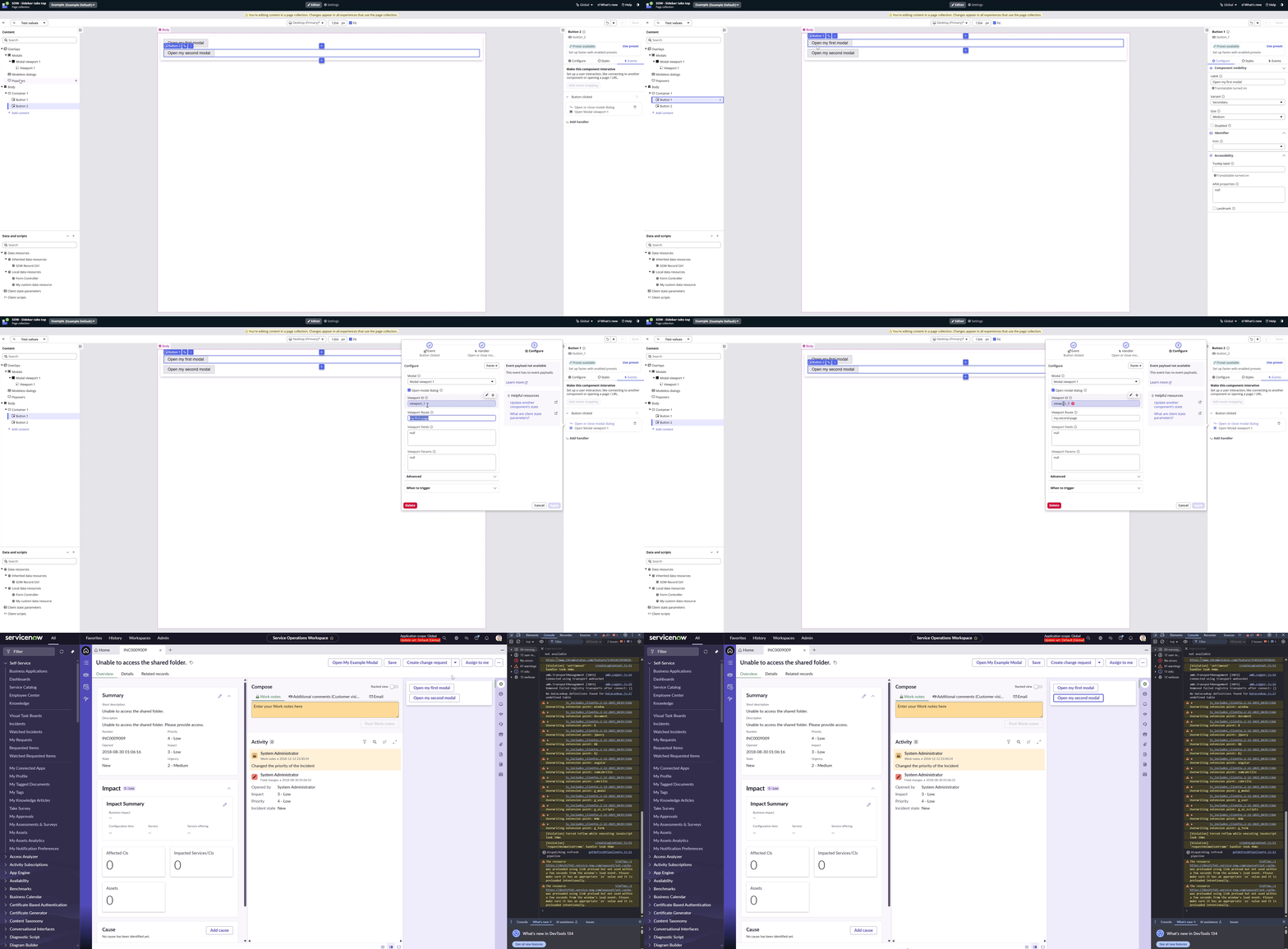
That will be all for now but there’s more; watch out for the next part ✌️
Jan
 My UI Builder Corner ☕
Leave a comment