

When you need to gather some data from the backend, you can either use in-built Data Resources (preferred) or you can create your own.
Let’s take a look at creating a Transform Data Resource. You’ll probably use it the most because, first, it’s basically a server script, and second, the documentation for the others is poor, so you end up in Transform anyway.
Creation
You can go through UI Builder or you can just create new record in table [sys_ux_data_broker_transform]

There are 4 important fields to fill: Name, Mutates server data, Properties, Script,
Name
Name of your Data Resource.
Mutates server data
This checkbox is crucial. If you keep it false, you basically say: “My data resource only reads data, and I don’t care how many times it is called, either by UI Builder during development or by Workspace when deployed“.
I once created a Data Resource that inserts data into the Incident table, but I forgot to check a box to set it to true. As a result, hundreds of records were created by UIB during my development before I noticed.
Moreover, false means that the response from your Data Resource will be available to you directly as an output of it: @data.[name_of_your_data_resource].output
The last aspect of false is that you can decide whether you want UIB/Workspace to call your Data Resource “Immediately” (on page load) or “Only when invoked” (for example, on button click).
If you set it to true, you explicitly say: “My Data Resource does write operations; don’t run it until I say so (button click, …).” Therefore, the only option in UIB will be “Only when invoked.”
The access to your Data Resource response also changes with true. Data that your Data Resource response is now available only in payload: @payload.data.output.
| false | true | |
| What is does | Reads It can technically write of course as well, but as number of calls can be unlimited, don’t do that. | Reads, Writes |
| When it runs | Immediately, Only when invoked | Only when invoked |
| How to access the response | @data.[name_of_your_data_resource].output | @payload.data.output |
Properties
There is a nice article about it HERE, and I am not going to duplicate it. Those properties will be available for you in UIB so you can fill them with payload you desire.
Script
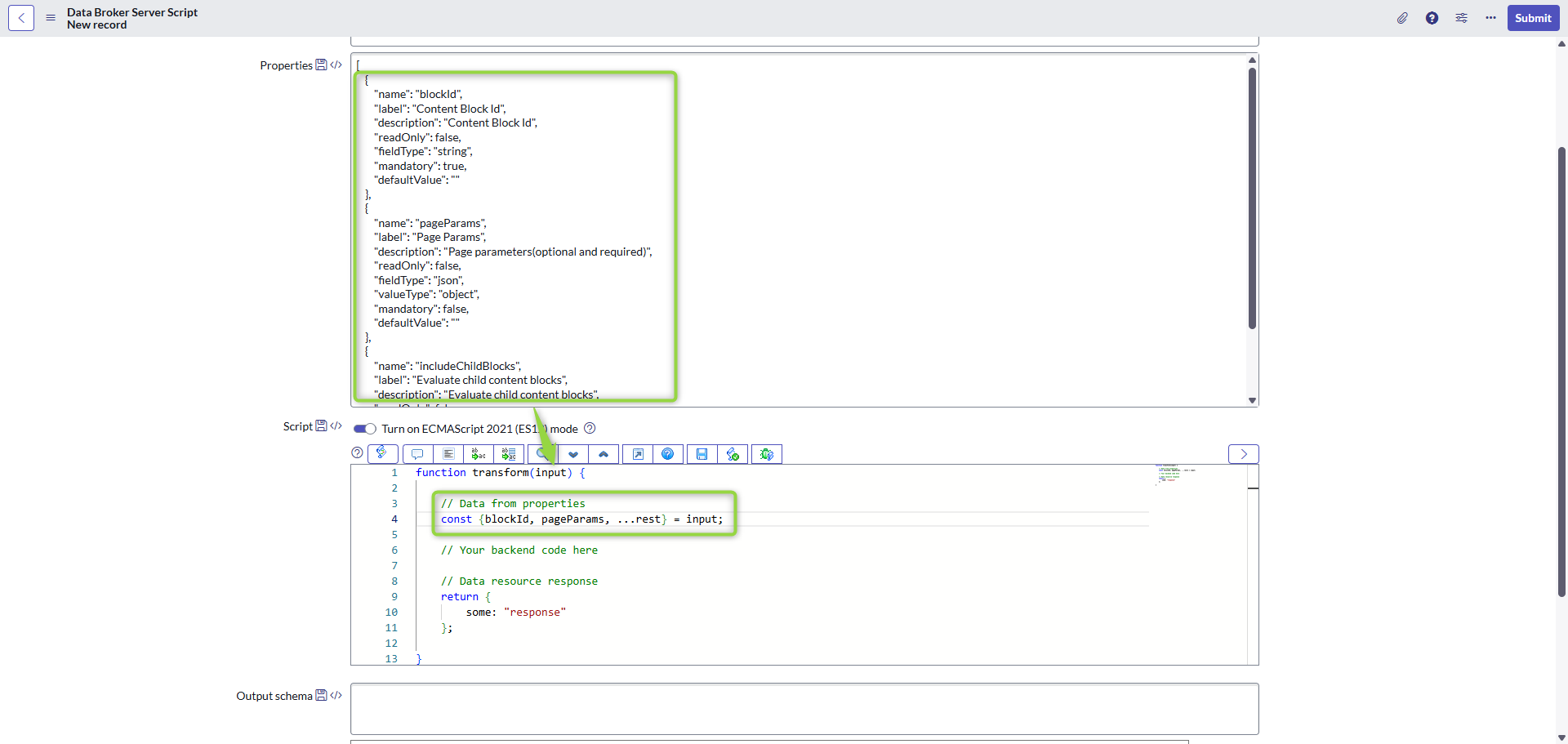
It’s a function that takes a parameter as an object of defined properties. Even though the properties are defined as an array of objects, the parameter in the script functions gives you an object where each property matches your definitions. Here’s an example:
ACL
Your Data Resource won’t work until you create an ACL for it. Each Transform Data Resource needs its own ACL targeting its sys_id. Here’s how:

A good practice is to mention the name of your data resource in the Description field.
Now you are ready to use it. Let’s take a look.
Usage
Lets start with a Data Resource that does not mutate any server data and just returns a random number.

After adding UIB, we can directly bind its output to a component.
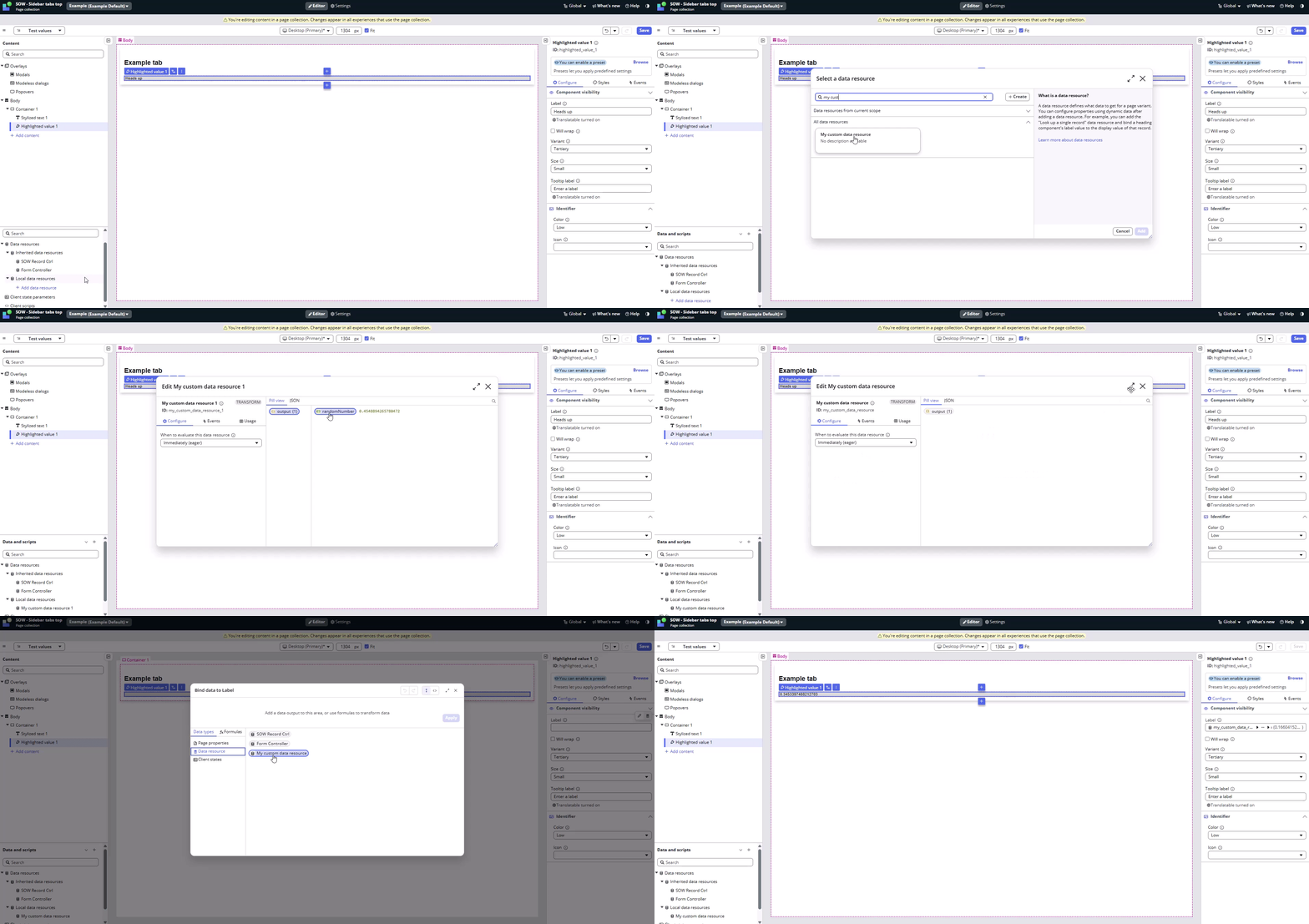
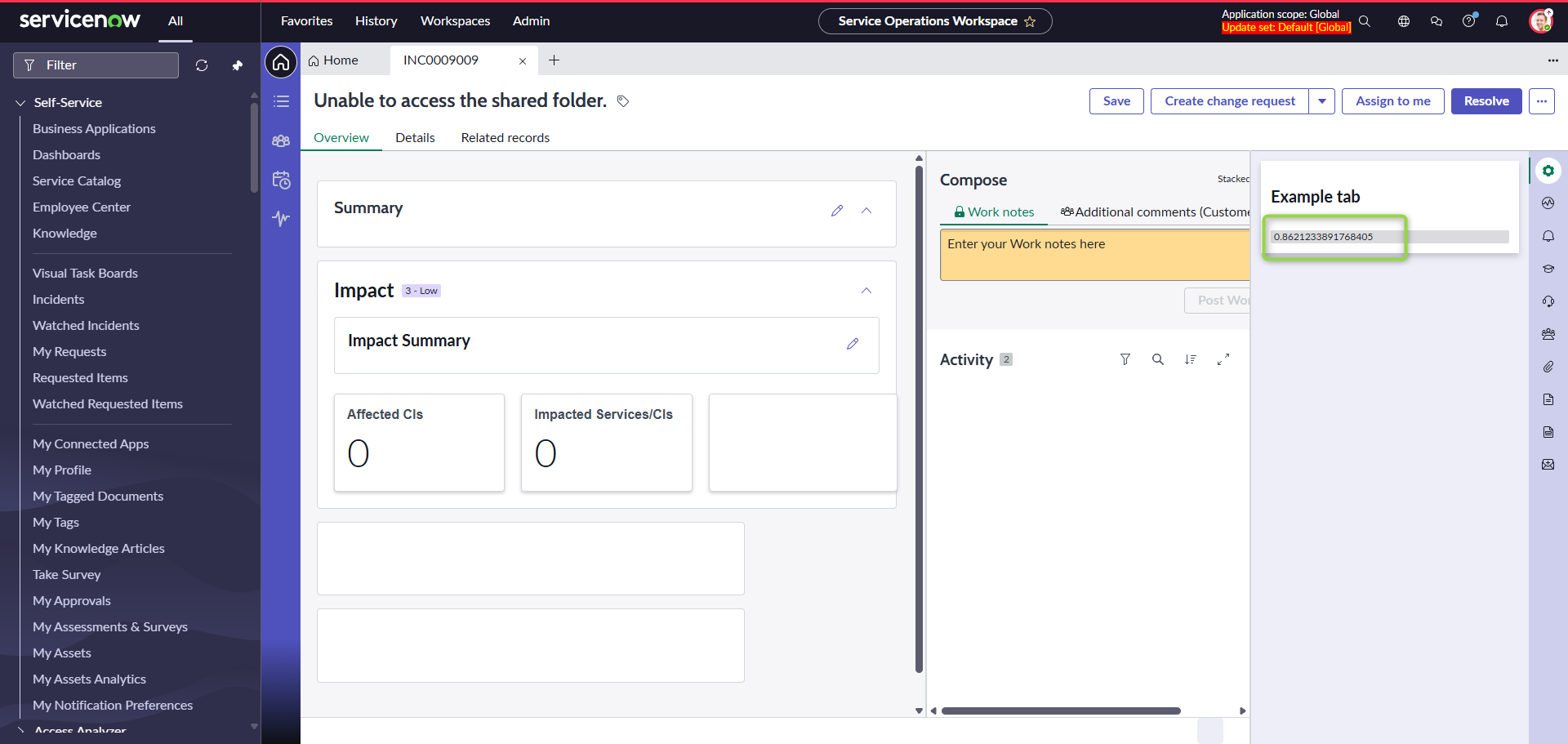
Now, every time the page loads, I get a fresh result from the Data Resource.
But it does not have to be a one-time action only on page load. I can refresh it again on demand via some event; for example, on button click.

When Data Resource does not mutate server data, I can choose whether to call it immediately or only when invoked. Let’s change it to only be invoked.

In this case, there will be no output until you manually call your Data Resource. We already have this call on button click, so the result appears there only after that.

Now lets change it so the Data Resource is marked as it mutates server data.

Now, we don’t have any other option than to call our data resource manually, via some event.

If we wanted to bind the response to some component as before, we wouldn’t be able to do so because the Data Resource wouldn’t be available for us there anymore.
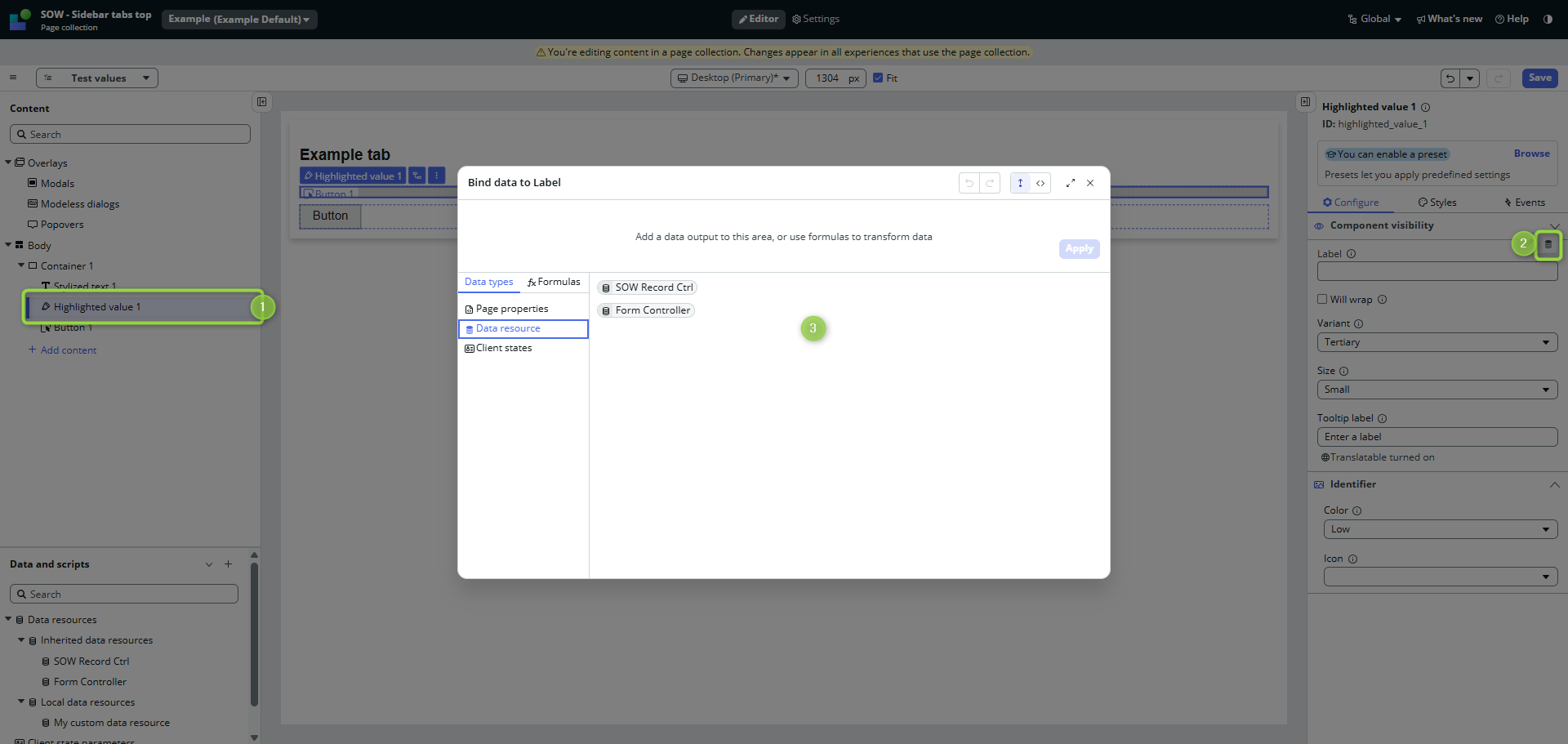
We need to catch the payload and store it in state in order to be able to work with it. If you are not sure how the payload path looks, use the troubleshooting approach with console.log.
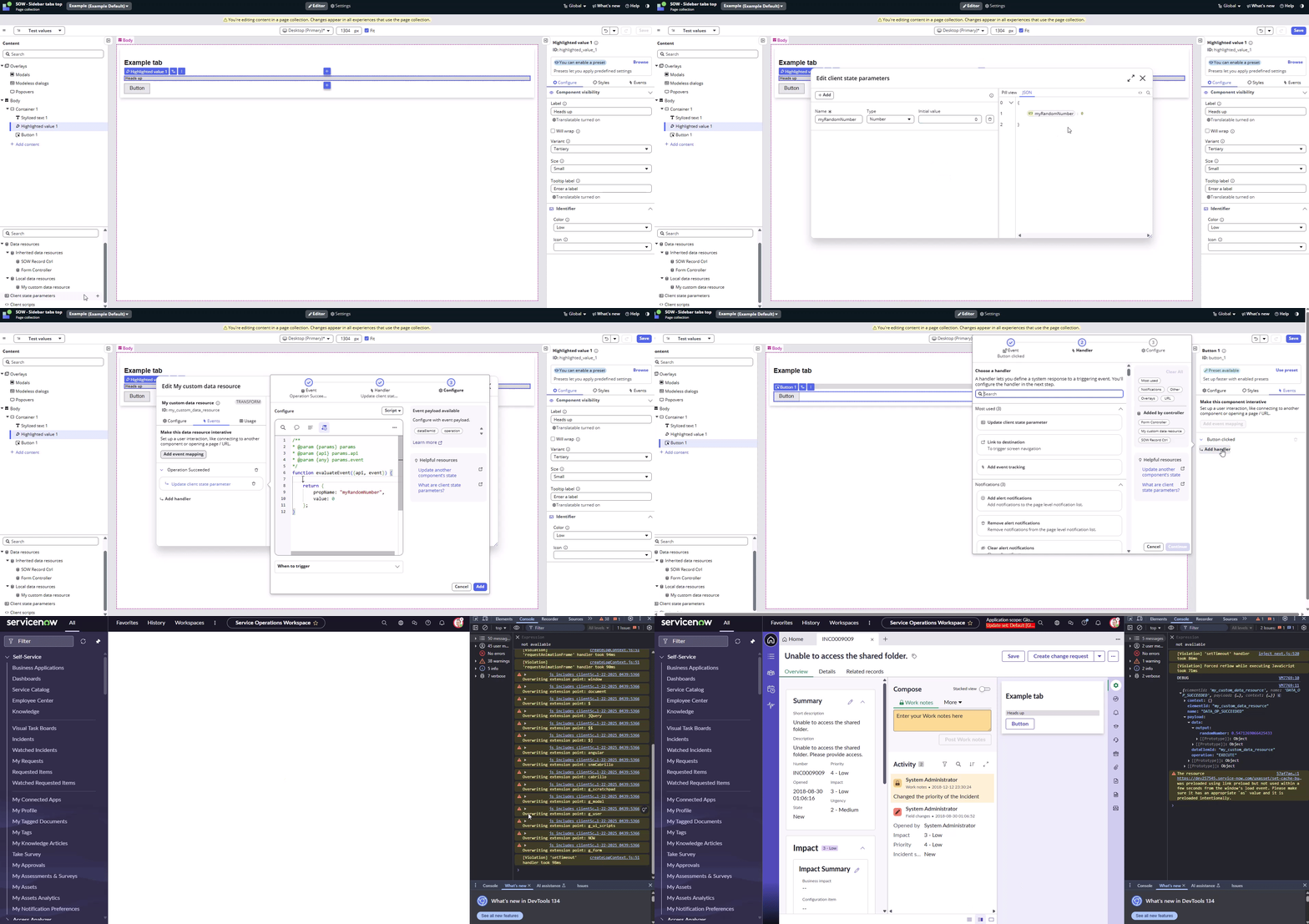
Now, you can save the output to the state and bind that state to your component property. Like this.

🔁 So, the full cycle now looks like this:
- We have state myRandomNumber
- We have Highlighted value component and its value is connected to that state
- We have Data Resource thats returns a random value and stores it in that state
- We have Input where if you press Enter, the value of that Input is send to that Data Resource.
Pressing Enter calls Data Resource, this data Resource returns the same value (because we return it as it came in the Data Resource script) and updates the state. And on state update, the value appears in the Highlighted value component. Check this in action 👇

That’s it, no rocket science. It’s basically a round trip: you fire an event (Button click) on the front-end that calls the Data Resource, this Data Resource does some backend operation (any server-side operation) and returns the response back to the front-end for you to handle as you wish.
🎯 Summary
- Transform Data Resource is basically a server-side operation
- You can call it immediately on page loads or on deman after some client event (button click)
- If your DR is set as NOT-mutating server data, it’s result is available directly in the DR path
- If your DR is set as mutating server data, you need to catch it’s payload in DR Event Handler
Enjoy 😊
 My UI Builder Corner ☕
Leave a comment